Azure Static Web Apps Are Now Generally Available
I wrote recently about moving my blog from Wordpress to an Azure Static Site.
Azure Static Web Apps have now moved out of Preview and are now …
Read MoreBy Kendra Little on • 5 min read
Hugo now has native support for Twitter Cards, but it took a few steps to get them working on my site in the way I wanted.
Here’s how I configured Twitter Cards in Hugo without any new shortcodes.
When you share a link on Twitter, it sometimes automatically adds an image to the tweet with a title and link at the bottom. This is a Twitter Card.

A Twitter card featuring a drawing of our beloved dog, Mister Little
Back when I used WordPress, I had a habit of setting the “featured image” for a post. Among other things, this featured image would typically be shown on the Twitter Card. After I switched from WordPress to Hugo, I noticed that when I tweeted links to my site, those pretty little cards weren’t showing up with my current configuration.
I like to be active on Twitter, so I wanted to fix this.
If you want to check out a Twitter card (or the lack thereof) without actually tweeting, Twitter provides an online Twitter Card validator.
Also, you can inspect a page’s HTML and look for metadata about Twitter cards. This can be especially useful if you’re working with your local webserver (the Twitter card validator can’t do anything with “http://localhost:1313/” because it has no way to see your local webserver).
You can “view page source” from your local webserver and look in the head portion of your HTML for meta tags that start with “twitter:”. Here is the way this metadata shows for this post on my local webserver, as I’m authoring it.

The Mainroad theme supports Twitter cards. When starting out, I had identified the twitter_cards setting in my config.toml file and I had set that to true. But my cards weren’t working. Why?
One reason was that I was not specifying a default image to use for a Twitter card. Here is the default images setting that worked for me:

One mistake I made along the way: I accidentally omitted the square brackets. That didn’t work at all, and it took some time to notice my mistake.
I like having a default TwitterCard, but I also like managing it for each page. Here is the Front Matter of this post as I’m authoring it in VSCode (or as I think of it, the header).
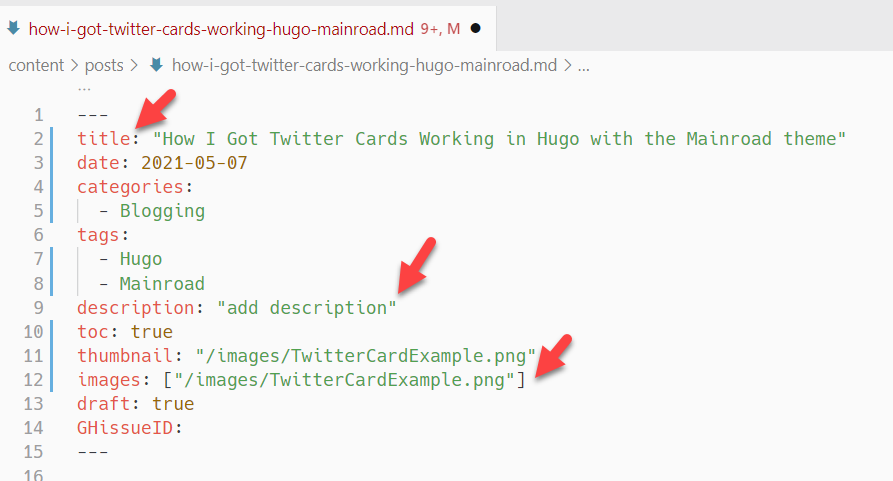
This might look like a lot of things to remember to list at the top of each post, but it’s not hard at all – I have an “archetype” set up in Hugo which makes auto-populating this list easy when I create a new post. (More on that below.)
I like managing these details on each page because it makes it simple for me – I can see what the thumbnail is at a glance, if I have it set to the same thing as the Twitter Card or something else, etc. It’s really easy to change at any time.
I have more than 500 pages on this site. Wherever I have a thumbnail listed, I wanted to update the front matter on each one to list the Twitter card and default it to the same image as the thumbnail. (Maybe the thumbnail is supposed to be used as the Twitter card image by default in Hugo if the card image isn’t specified, I’m not clear– but it wasn’t working on my site and this seemed like the simplest fix if I could get it done fast.)
I was able to do this easily using the “Find and Replace in files” feature in VS code, with regular expressions enabled on my search and by making use of an “index” in the search.
I searched in files for: ^thumbnail: (.*)\n
I replaced this with: thumbnail: $1 \nimages: [$1]\n
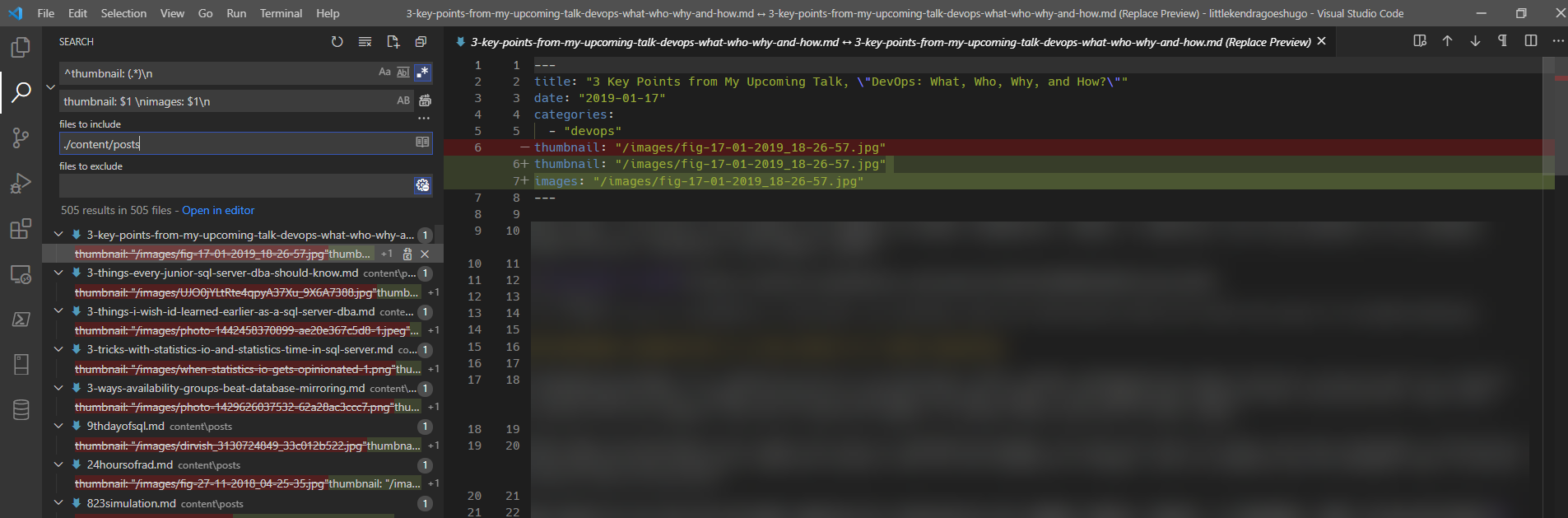
I found this post very helpful in figuring out the regular expression to use here.
As I mentioned above, I use an archetype in Hugo. This is essentially a template which will help me quickly create a new markdown file for a post with all the front matter I want pre-configured for me to fill in.
I updated my archetype file for posts. Here’s what I currently have in the file, which in my case lives at archetypes/posts.md:
---
title: "{{ replace .Name "-" " " | title }}"
date: {{ .Date }}
categories:
  -
tags:
  -
description: "add description"
toc: false
thumbnail:
images: []
draft: true
GHissueID:
---

Add post here.
To create a new post with the archetype, I run the following from the command line in my Hugo project, with whatever I want as the post title as the markdown file name:
hugo new posts\hi-i-am-a-new-post.md
That gives me a nice file to fill in with my post.
There might be a more elegant way to solve this rather than that regular expression I used– but I really enjoyed it!



Copyright (c) 2025, Catalyze SQL, LLC; all rights reserved. Opinions expressed on this site are solely those of Kendra Little of Catalyze SQL, LLC. Content policy: Short excerpts of blog posts (3 sentences) may be republished, but longer excerpts and artwork cannot be shared without explicit permission.