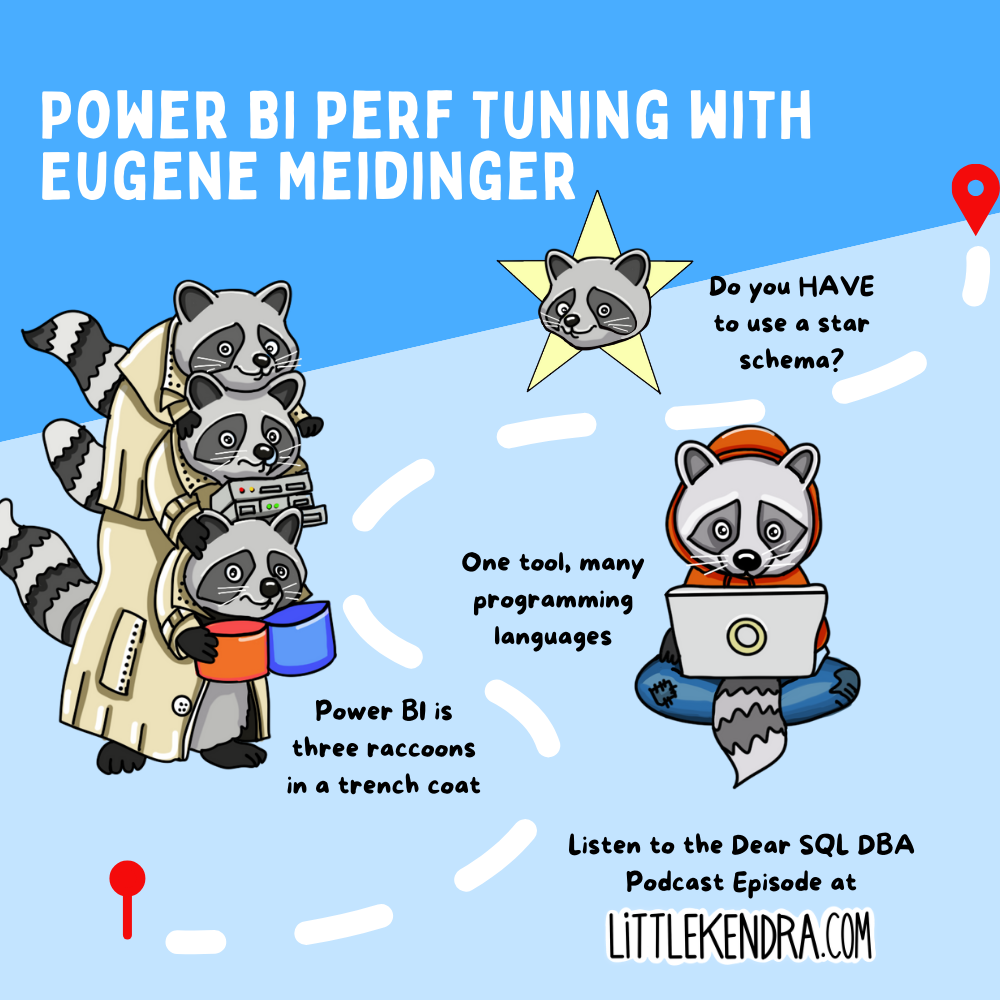
Power BI Performance Tuning with Eugene Meidinger
Eugene Meidinger stops by the Dear SQL DBA Podcast to chat about Power BI Performance Tuning.
We talk about the various engines and languages used in …
Read MoreBy Kendra Little on • 4 min read
PASS Summit 2019 starts up next Monday with pre-conference sessions. I’ve got my schedule all set, and I’m going to be busy: I’m speaking in two full-day pre-conference sessions, giving two regular sessions, judging the ever-exciting Speaker Idol competition, and also spending time at the Redgate booth in the expo hall. I scored a little PASS-TV interview to talk about Redgate right before the keynote on the first day.
I am super lucky to have all these awesome activities lined up, but one thing is clear…
I will not have a lot of time to react if something goes wrong, such as laptop failure, a critical VM that won’t boot up, poor internet connection, etc. When it comes to my talks, I keep copies of my presentations in the cloud and on USB keys in case my laptop fails: that’s no big deal, as the conference provides workstations that speakers can use which are loaded with PowerPoint. However, demos are a different story.
I would then add the screenshots to hidden slides in my presentation. If I couldn’t do the demos live or if something weird went wrong, I’d un-hide the slides and start showing screenshots of how it was supposed to work.
The problem: screenshotting is time-consuming. And doing a run-through where you create screenshots breaks up your flow: the constant pausing, screenshotting, and pasting is very distracting. It’s not great demo practice.
This means that I don’t need to pause, I can simply rehearse the demo while recording my screen: and I can think about important things, like what are the most useful points to convey about the demo to my specific audience at this event. There is no need to capture sound: if I use the gifs, I’ll narrate them live and talk through what is auto-playing on screen. You can even pause a gif that is playing in PowerPoint by clicking the menu at the bottom left of the screen in a live presentation.

Here is the workflow I use:
For pretty short demos (less than a minute) I have even found that it’s convenient to show the animated gif and talk through it instead of doing a live demo. This is nice because it reduces switching in and out of PowerPoint when I want to show something quickly: screen switching takes time and can be visually jarring for the audience on many projectors.
Your PowerPoint files can become quite large. This was also a downside of my screenshot approach, so I’m already used to large PowerPoints. If it is an issue for you, you could simply not add the animated gifs to the PowerPoint and store them and access them separately if needed.
All in all, I’m quite happy with my updated method of “accident proofing” my talks. Long live the animated gif!

Copyright (c) 2025, Catalyze SQL, LLC; all rights reserved. Opinions expressed on this site are solely those of Kendra Little of Catalyze SQL, LLC. Content policy: Short excerpts of blog posts (3 sentences) may be republished, but longer excerpts and artwork cannot be shared without explicit permission.