
Why Won't PostgreSQL Use My Covering Index?
Dear Postgres, Why won’t you use my covering index?
Lately I’ve been learning to tune queries running against PostgreSQL, and it’s …
Read Moreon • 24 min read
I’ve been asked a lot of questions about updating statistics in SQL Server over the years. And I’ve asked a lot of questions myself! Here’s a rundown of all the practical questions that I tend to get about how to maintain these in SQL Server.
I don’t dig into the internals of statistics and optimization in this post. If you’re interested in that, head on over and read the fahhhbulous white paper, Statistics Used by the Query Optimizer in SQL Server 2008. Then wait a couple days and chase it with it’s charming cousin, Optimizing Your Query Plans with the SQL Server 2014 Cardinality Estimator.
I’m also not talking about statistics for memory optimized tables in this article. If you’re interested in those, head over here.

Back when I read philosophy, I found Aristotle a bit annoying because he talked so much about “moderation”. Doing too little is a vice. Doing too much was a vice. Where’s the fun in that?
Unfortunately, Aristotle was right when it comes to statistics maintenance in SQL Server. You can get in trouble by doing too little. And you can get in trouble by doing too much.
⇒ Be a little proactive: If you have millions of rows in some of your tables, you can get burned by doing no statistics maintenance at all if query performance stats to get slow and out of date statistics are found to be the cause. This is because you didn’t do any proactive work at all.
⇒ If you’re too proactive, you’ll eventually be sorry: If you set up statistics maintenance too aggressively, your maintenance windows can start to run long. You shouldn’t run statistics maintenance against a database at the same time you’re checking for corruption, rebuilding indexes, or running other IO intensive processes. If you have multiple SQL Servers using shared storage, that maintenance may hit the storage at the same time. And what problem were you solving specifically?
⇒ The moderate approach:
One widely used free script is Ola Hallengren’s SQL Server Index and Statistics Maintenance script.
If you’re managing lots of SQL Server instances and want ultimate customization, there is a free version of Minion Reindex.
Statistics are small, lightweight objects that describe the distribution of data in a SQL Server table. The SQL Server query optimizer uses statistics to estimate how many rows will be returned by parts of your query. This heavily influences how it runs your queries.
For example, imagine you have a table named agg.FirstNameByYear and you run this query:
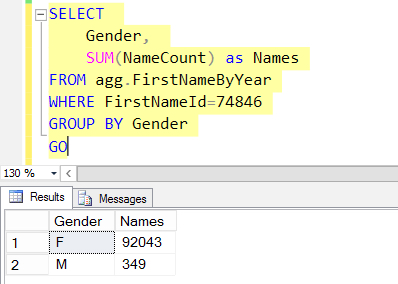
SQL Server needs to estimate how many rows will come back for FirstNameId=74846. Is it 10 million rows, or 2? And how are the rows for Gender distributed?
The answers to both of these questions impact what it does to GROUP those rows and SUM the NameCount column.
Statistics are lightweight little pieces of information that SQL Server keeps on tables and indexes to help the optimizer do a good job.
If the agg.FirstNameByYear table was freshly created when we ran our query, it would have no column statistics.
By default, the SQL Server optimizer will see that no statistics exists, and wait while two column statistics are created on the FirstNameId and Gender columns. Statistics are small, and are created super fast– my query isn’t measurably any faster when I run it a second time.
Here’s what the statistics look like on the table in Object Explorer. Notice the artisanally crafted names.
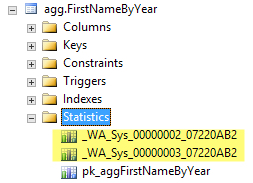
If you want to verify which column is in each auto-created statistic, you can do that with this query:
SELECT s.name,
    s.auto_created,
    s.user_created,
    c.name as colname
FROM sys.stats AS s
JOIN sys.stats_columns as sc
    on s.stats_id=sc.stats_id
    and s.object_id=sc.object_id
JOIN sys.columns as c on
    sc.object_id=c.object_id
    and sc.column_id=c.column_id
WHERE s.object_id=OBJECT_ID('agg.FirstNameByYear')
    and s.auto_created = 1
ORDER BY sc.stats_column_id;
GO
Sure enough, here are our statistics, and they are on Gender and FirstNameId. These are not considered ‘user created’ even though our user query was the cause of them being auto-generated. (“User created” means someone ran a CREATE STATISTICS command.)

SQL Server can now use the statistic on Gender and the statistic on FirstNameId for future queries that run.
Whenever you create an index in SQL Server, it creates a statistic associated with that index. The statistic has the same name of the index. Our agg.FirstNameByYear table has a clustered primary key, and here is the statistic that was created along with that index:
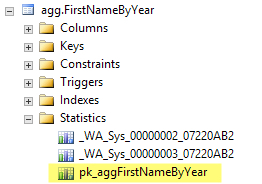
If columns are important enough to index, SQL Server assumes that it’s also important to estimate how many rows would be returned by that index when you query it. You can’t drop statistics associated with indexes (unless you drop the index).
Nope! SQL Server does a really good job creating single-column statistics automatically.
Statistics will continue to be created on single columns when queries run as long as the “Auto Create Statistics” database property remains on. You can check that setting on your databases with the query:
SELECT is_auto_create_stats_on
FROM sys.databases;
GO
You should leave auto_create_stats_on set to 1 unless an application is specifically designed to manually create its own statistics. (That is pretty much limited to weirdoes like SharePoint.)
In rare situations, manually creating a multi-column statistic or a filtered statistic can improve performance… but keep reading to find out what those are and why it’s rare to require them.
Auto-created statistics are incredibly small, and you only get one per column in a table. Even if you have a statistic on every column in the table, this is a very small amount of overhead.
Statistics take up a negligible amount of space compared to indexes.
With default database settings, the SQL Server optimizer looks at how many changes have occurred for a given column statistic as part of query optimization. If it looks like a significant amount of rows in the column have changed, SQL Server updates the statistic, then optimizes the query. Because why optimize a query on bad data estimates?
The thresholds for when auto-update statistics kicks in are a little complicated.
For SQL Server 2005 - SQL Server 2014 (with no trace flags)
Note that the statistics don’t auto-update when the rows are changed. It’s only when a query is being compiled and the statistics would actually be used to make an optimization decision that the update is kicked off. Erin Stellato proves that in her post here.
Trace Flag 2371 makes the formula for large tables more dynamic. When tables have more than 25,000 rows, the threshold for automatic statistics update becomes more dynamic, and this adjusts as the rowcount goes up. See a graph of the adjusting threshold in this post from the SAP team. (I think we know which team really felt some pain and wanted this trace flag to exist, because the trace flag was announced on their blog!)
Trace flag 2371 is available in SQL Server 2008R2 SP1-SQL Server 2014.
SQL Server 2016 automatically uses this improved algorithm. Woot! So if you’re using SQL Server 2016, you don’t need to decide. Erik Darling tested out the behavior in 2016 and wrote about it here.
Prior to 2016, here’s a quick rundown of pros and cons of TF2371:
Overall, this is a low risk trace flag. But in general it does NOT pay off to enable trace flags “just in case” for most people.
Trace Flag 7471 is a global trace flag released in SQL Server 2014 SP1 Cumulative Update 6.
This trace flag changes the locking behavior associated with updating statistics. With the trace flag on, if you set up jobs to concurrently update statistics on the same table, they won’t block each other on metadata related to statistics updates.
Jonathan Kehayias has a great post on TF 7471 on SQL Performance.com. He demos the trace flag in a video for the SQL Skills Insider Newsletter where he shows the changes in locking behavior this flag introduces. Download the video in WMV format or MOV format to watch.
Any trace flag can have unintended side effects. If I had a really good reason to run concurrent statistics updates against one table after exhausting other options to avoid the maintenance, I’d consider using this. I’d also only turn it on for that specific maintenance window, and turn it off afterward. (Edit: I wrote this before Microsoft blogged about the trace flag, but it turns out it’s exactly what the recommend in their blog post due to the deadlocking issue called out in “risks”.)
Remember how I said that when SQL Server is optimizing a query, it smells the statistics to see if they’re still fresh, and then waits to update them if they’re smelly?
You can tell it not to wait to update them, and just use the smelly stats. It will then optimize the query. The stats will still be updated for any queries that come later, but boy, I hope those statistics were good enough for that first query!
You control this with the ‘Auto Update Stats Async’ setting. You can query this setting on your databases like this:
SELECT is_auto_update_stats_async_on
FROM sys.databases;
GO
Asynchronous statistics updates are usually a bad choice. Here’s why:
If you know that a lot of data is changing in a table, you may want to manually update statistics. This is true for automatically created statistics by the system (assuming you’ve left auto-create stats on, as described above), as well as for user created statistics, or statistics related to an index.
Possibly:
A classic example of a stats problem is “recent” data from an ETL. You have a table with 10 million rows. 500,000 rows of data are loaded for the most recent batch. Important queries are looking at the table for rows with LoadDate > two hours ago.
Statistics won’t update automatically for queries, because < 2,000,500 rows have changed.
Those queries will estimate that there is one row. (To be safe. Wouldn’t wanna estimate zero!) That’s a huge mis-estimation from 500,000, and you might end up with some very bad query plans. Gail Shaw wrote a great post on this– it’s called the “ascending date” problem.
In this kind of data load situation, it is helpful to run UPDATE STATISTICS against the entire table where the data has loaded at the end of the load. This is typically a lightweight command, but in very large tables, UPDATE STATISTICS may be run against specific indexes or columns that are sensitive to recent data to speed up the process. (Exception: if the job creates or rebuilds indexes at the end of its run, the statistics related to those indexes are already updated with FULLSCAN and do not require any maintenance.)
If you have found optimization problems and you can’t change your data load to manually update statistics, Trace Flag 2371 might help.
What if a Lot of Data Changes Through the Day Based on User Interactions?
Most databases are small. They don’t have millions and millions of rows. And most of those databases are just fine without any manual update of statistics.
If you’ve got tables with millions of rows, and you’ve found that statistics aren’t updating fast enough, you can consider:
No. You really shouldn’t.
Maintenance Plans are really dumb when it comes to statistics. If you run UPDATE STATISTICS against a table, index, or statistic, by default it will use a sampling. It won’t look at every row.
Maintenance Plans don’t do that. Instead, they require you to either:
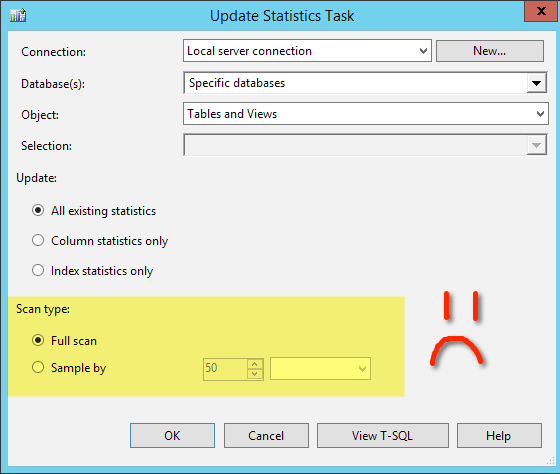
Neither of these options are good options.
You could use a maintenance plan to kick off a third party script that’s smarter about this, but don’t use a maintenance plan with an Update Statistics task. I found cases where that was set up using the default fullscan and it was taking many hours to run against a tiny database.
If you update statistics with FULLSCAN, SQL Server may choose a parallel plan since SQL Server 2005.
If you create or update statistics with sampling, including the default sampling used in automatic statistics creation, SQL Server may choose a parallel plan as of SQL Server 2016.
As we just covered, if you update statistics on an entire table with FULLSCAN:
For any column statistic where there IS an index leading on that column, or for an index statistic, SQL Server will scan the index
As tables grow, updating with FULLSCAN starts taking longer and longer. It uses IO and resources on the instance. You started updating statistics because you were concerned about performance, and now you’re impacting performance.
Only update statistics with FULLSCAN if you are solving a specific problem, and you don’t have a better way to handle it. If you need to do this:
Manual statistics update with FULLSCAN can sometimes be used as a temporary measure to contain the pain of a problem while you research what query changes may stabilize the execution plans of the problem query, but this solution rarely satisfies users and business owners. Those folks are usually happier if something changes that guarantees the problem query will be consistently fast, even if a bunch of data changes. This usually means:
The essence of the problem with using manual statistics updates for a performance problem is that this is a reactive measure, and almost never prevents the problem from occurring entirely.
The built in sp_updatestats procedure is smarter than the “Update Statistics Task” in maintenance plans. It rolls through every table in the database, and is smart enough to skip tables if nothing has changed. It’s smart enough to use the default sampling.
It’s a smaller sledgehammer than the maintenance plan task, but arguably still wastes resources, particularly when it comes to statistics associated with indexes. Consider this scenario:
The ALTER INDEX REBUILD command creates a beautiful new index structure. To do this, it has to scan every row in one big operation. And while it’s doing it, it updates statistics with FULLSCAN, meaning based on every row.
So our maintenance did a bunch of work updating stats with the default sampling. Then redid the same work for every index that got rebuilt.
Erin Stellato is not a big fan of sp_updatestats. Read why in her excellent article here.
If you’re going to the trouble to set this up, it’s a better use of your resources to use an indexing script that can handle that statistics update inline for columns and for indexes where REORGANIZE is done, and just skip it for REBUILD.
Linked servers are special. Especially frustrating.
Prior to SQL Server 2012 SP1, any query using a linked server would not have permission to use statistics on the remote (target) database unless it used an account with db_owner or db_ddladmin permissions, or higher. In other words, read-only permissions meant that SQL Server couldn’t use statistics to generate a good query plan.
Stated differently: prior to SQL Server 2012 SP1, you must choose between better security and better performance. You can’t have both.
Great reason to upgrade! Read more about this issue in Thomas LaRock’s article on linked server performance.
Let’s revisit our example table. Two column statistics were created on this table, one on FirstNameId, and one on Gender:
Let’s say that later on we create an index on Gender named ix_Gender. It will have index statistics created for it! I now have a column statistic on Gender, and an index statistic on Gender.
Someone could also manually create another column statistic on Gender using the CREATE STATISTICS statement. That rarely happens, but never say never. These statistics are technically ‘duplicates’.
I’ve never found a case where dropping duplicate statistics improved performance in a measurable way. It is true that you don’t need them, but statistics are so small and lightweight that I wouldn’t bother writing and testing the code to clean them up unless I had a super good reason.
Multi-Column statistics are only sort of what the name sounds like. These can get created in a few different ways:
But multi-column statistics don’t contain complete information for all the columns. Instead, they contain some general information about the selectivity of the columns combined in what’s called the “Density Vector” of the index.
And then they contain a more detailed estimation of distribution of data for the first column in the key. Just like a single column statistic.
It’s quite possible that nothing will change. Multi-column statistics don’t always change optimization.
It’s also possible that the query you’re trying to tune could slow down. The information in the density vector doesn’t guarantee better optimization.
You might even make a schema change fail later on, because someone tries to modify a column and you created a statistic on it manually. (This is true for any user created statistic, whether or not it’s multi-column.)
It’s pretty rare to make a query faster simply by creating a multi-column statistic, and there’s a very simple reason: if a multi-column statistic is critically important, an index probably is even more critical to speed up execution. So usually the big win comes in creating or changing an index. (And yes, that also creates the multi-column statistic.)
Filtered statistics are statistics with a “where” clause. They allow you to create a very granular statistic. They can be powerful because the first column in the statistic can be different from the column or columns used in the filter.
Filtered statistics are automatically created when you create a filtered index. That’s most commonly where you’ll find a filtered statistic: helping a filtered index.
It’s rare to need to create filtered statistics manually, and beware: if your queries use parameters, the optimizer may not trust the statistics when it optimizes plans – because the plan might be reused for parameters that go outside of the filtered. So you could potentially create a bunch of filtered statistics for nothing.
For loads of details on filtered stats, watch Kimberly Tripp’s free video, Skewed Data, Poor Cardinality Estimates, and Plans Gone Bad.
There is no dynamic management view that lists this. You can’t look at an instance and know which statistics are useful and which aren’t.
For an individual query, there are some undocumented trace flags you can use against a test system to see which statistics it’s considering. Read how to do it in Paul White’s blog here (see the comments for a note on the flag to use with the new cardinality estimator).
You can, but don’t tell anyone I told you, OK?
Read how to do this undocumented / bad idea / remarkably interesting hack on Thomas Kejser’s blog.
Temporary statistics are an improvement added in SQL Server 2012 for read-only databases. When a database is read-only, queries can’t create statistics in the database– because those require writes. As of SQL Server 2012, temporary statistics can be created in tempdb to help optimization of queries.
This is incredibly useful for:
Prior to SQL Server 2012, if you use logshipping for reporting and the same workload does not run against the logshipping publisher, consider manually creating column level statistics. (Or upgrading SQL Server.)
Disambiguation: temporary statistics are unrelated to statistics on temporary tables. Words are confusing!
Table variables don’t have statistics, but temporary tables do. This is useful, but it turns out to be incredibly weird… because statistics on temporary tables can actually be reused by subsequent executions of the same code by different sessions.
Yeah, I know, it sounds like I’m delusional. How could different sessions use the same statistics on a (non-global) temporary table? Start by reading Paul White’s bug, “UPDATE STATISTICS Does Not Cause Recompilation for a Cached Temporary Table,” then read his post, “Temporary Tables in Stored Procedures.”
If you run into problems with slow queries, you can test the slow query and see if updating statistics makes the query run faster by running UPDATE STATISTICS against a column or index statistic involved in the query.
This is tricker than it sounds. Don’t just update the statistics first, because you can’t go back!
In many cases, queries are slow because they are re-using an execution plan that was compiled for different parameter values. Read more on this in Erland Sommarskog’s excellent whitepaper, Slow in the Application, Fast in SSMS - start in this section on “Getting information to solve parameter sniffing problems.”



Copyright (c) 2025, Catalyze SQL, LLC; all rights reserved. Opinions expressed on this site are solely those of Kendra Little of Catalyze SQL, LLC. Content policy: Short excerpts of blog posts (3 sentences) may be republished, but longer excerpts and artwork cannot be shared without explicit permission.