
100 Things I Hate About Views: Undeclared Data Types in Columns
Views let you do dumb things by accident in SQL Server. Then they make you have to think way too hard to fix them.
Read MoreBy Kendra Little on • 4 min read
Sometimes we learn things in the wrong order. Or skip a step. If you’re just starting out as a SQL Server DBA, here are three questions that you need to be able to answer at any given time. If you aren’t 100% sure that you can handle these questions at 3 AM when you’ve had a few drinks, it’s time to revisit them.
This seems like it should be really simple to check. But it’s not! To even check service status, you need to first know:
For a “standalone” SQL Server, most DBAs use the SQL Server Configuration Manager to view the SQL Server Services, their status, and whether they are set to automatically start or not.
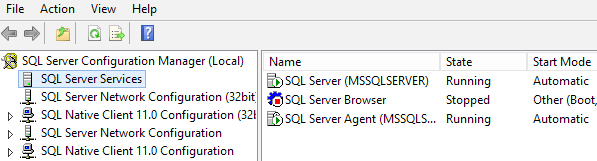
You can see the very same services and properties in the Windows Services snap-in. It’s supported to start and stop the services using either tool, as long as your SQL Server isn’t part of a Windows Failover Cluster.
If your SQL Server is part of Windows Failover Cluster, then you need to use the Windows Failover Cluster Manager snap-in to check if the SQL Server Service is online (and if so, which cluster node it’s currently using). You don’t have to run this from a node of the cluster itself, but you need to run it from a Windows install that has the Failover Cluster tools feature added and which can connect to the cluster properly (isn’t blocked by firewalls, can authenticate, etc).
The easiest way to check database status is to connect to the SQL Server instance using Management Studio and run a simple query:
SELECT * FROM sys.databases
GO
You don’t have to be a TSQL expert. But you should memorize this query and familiarize yourself with the normal output for all the columns about user access level and state on your instances.
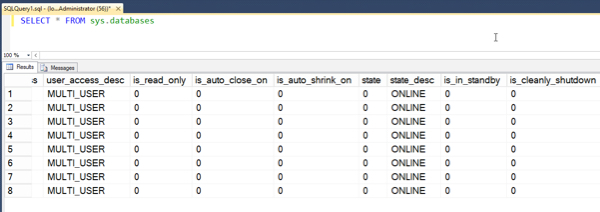
Even after doing this, there’s one final test: can you use the database? Use this code (but replace mydatabass with the name of your own)…
USE mydatabase
GO
Yeah, I know, it would seem like sys.databases should cover everything. Make sure you can actually use the database, I’ve had more than one case where things “looked” fine, but I realized I’d missed something when I went to use the database.
If your databases are in a SQL Server Availability Group, the Failover Cluster Manager can help you see whether the AG is healthy or not. But if the AG is keeping the database online, just trying to use the database yourself will give you a ton of information, fast.
Confession: I was a Junior DBA for a long time before I had a clue about this. It’s not unusual– many DBAs pick up existing databases and it’s natural to accept that the settings are correct.
Except, usually they aren’t. Usually, the last person who set them up just kinda guessed.
Guess what? You’re responsible for whatever they guessed.
To make the right decision about the basic setup of your databases and backups, you need to learn the following SQL Server concepts:
You also need to learn about the data in your databases. I find that the easiest way to do this is to ask business owners the following questions:
The answers to these questions drive your backup and restore plans, and determine:
Once you get your backups set up, test multiple restore scenarios and make sure you can meet your business requirements.
Future You will be really glad you did.



Copyright (c) 2025, Catalyze SQL, LLC; all rights reserved. Opinions expressed on this site are solely those of Kendra Little of Catalyze SQL, LLC. Content policy: Short excerpts of blog posts (3 sentences) may be republished, but longer excerpts and artwork cannot be shared without explicit permission.